Skip to main
University-wide Navigation

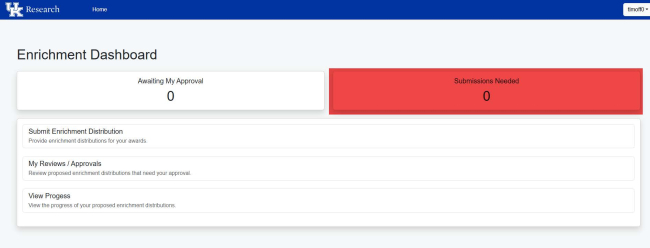
The Enrichment dashboard allows you to act in 3 ways.

  1. Submit Enrichment Distributions: This is used to submit Enrichment Distributions for new grant awards or to submit revisions for existing grants that already have Enrichment Distributions assigned.
Enrichment dashboard with "Submit Enrichment Distribution" highlighted
  1. Review and approve/reject Enrichment Distributions submitted by others.
screenshot of the UK enrichment Dashboard with "My reviews/Approvals" highlighted
  1. View the approval progress of Enrichment Distributions you have submitted or that you are part of the approval process.
screenshot of the Enrichment Dashboard with "View Progress" highlighted

Accessing the Enrichment Distribution System

  1. Log in to the Enrichment Distributions application at https://ris.uky.edu/enrichment/app/login using your linkblue ID and password.
screenshot of Enrichment Distributions login screen
  1. Your Enrichment dashboard provides the following information.
    1. The number of Enrichment submissions awaiting your approval.
screenshot of the Enrichment Dashboard with the section for "Awaiting My Approval" highlighted

             b. The number of new grant accounts for which you are PI and Enrichment Distribution submissions are needed.

screenshot of Enrichment Dashboard with "Submissions Needed" section highlighted

Submitting Enrichment Distributions

Video demonstration for submitting distributions
 

  1. To submit Enrichment Distributions, click on the Submit Enrichment Distribution box.

Screenshot of Enrichment Dashboard with "Submit Enrichment Distribution" highlighted with a red box
  1. Principal Investigators will have a list of their grants as shown below in 5a. Department Administrators/Business Officers will click on Create enrichment proposal as shown in 5b.

              a. PI View

screenshot of the Enrichment Update Instructions page in the Enrichment Distribution System

          b. All Others

screenshot of the Enrichment Update Instructions with a red box around a button that reads "Create Enrichment proposal"
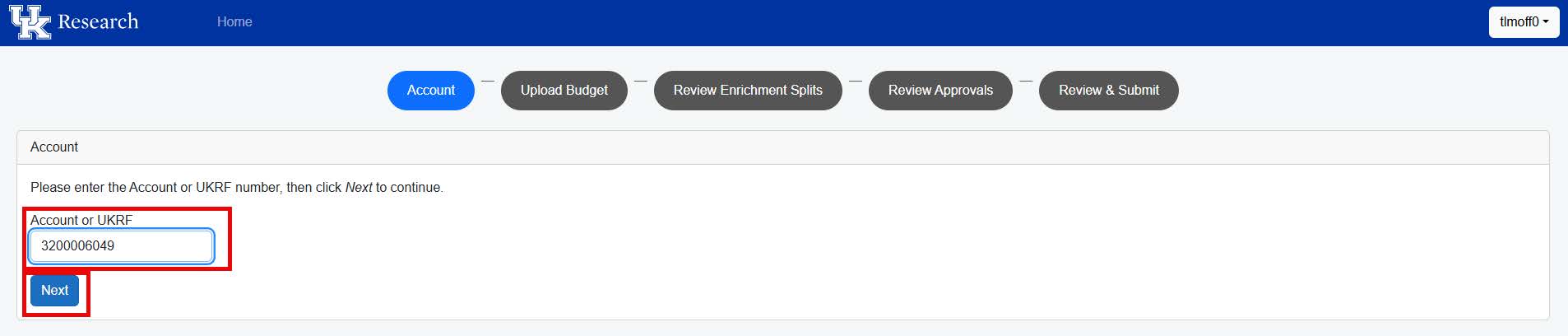
  1. PIs will click on the grant number for which they need to submit distributions. All others will enter the account number. This can be the SAP WBS account# or the MIS# from the PADR. Then click Next.
screenshot of Account window with the area for Account or UKRF highlighted
  1. If there is no budget file found for the grant you entered, you will receive the yellow message shown below. This may happen with grants whose proposal was submitted prior to December 2025.
the Upload Budget screen

          a. Reach out to your CGS Post Award staff person to obtain an updated Excel budget file. The Enrichment system reads a specific file template that CGS must provide.

          b. Click on Choose File.

Upload Budget screen with "Choose file" highlighted

          c. Navigate to where the file is saved on your computer. Either click on the file & click Open, or double-click on the file name.

file explorer window open with the file name and "open" highlighted

          d. Once the file is attached, the file name will appear beside the Choose File icon.

Upload Budget screen showing the file name next to the "Choose File" button

          e. Click on the blue Next button.

  1. If there is a budget in the new system, you’ll receive the green message shown below.
Upload Budget screen displaying a green notification that starts, "An approved budget has been found..."

          a. If the budget for the project has not changed since the proposal was initially submitted, leave the Use budget file from OSPA records selected & click Next.

          b. If the budget for the project has changed since the proposal was initially submitted, you may need to obtain an updated budget file from CGS.

               i. Once the new budget file has been obtained, click the radio button to choose Upload a new budget file. 

               ii. Click Choose File.

               iii. Navigate to where the file is saved on your computer and double-click the file name.

               iv. Then click Next.

  1. The Review Enrichment Splits screen shows you the default Enrichment distribution percentages based on the grant budget.

     a. The estimated F&A budget for the grant is listed.

The Review Enrichment Splits screen showing the Estimated F&A Budget number

          b. The default Enrichment Distribution percentages are listed.

The Review Enrichment Splits screen with the "% of Total Budget" column highlighted

          c. The actual amount of estimated F&A based on the default Enrichment Distribution percentages is also listed.

the Review Enrichment Splits screen with the budget amount column highlighted
  1. The Enrichment % section allows you to adjust the Enrichment Distribution percentages, if they need to be different than the default. Click inside the boxes and enter the new percentages.
The Review Enrichment Splits screen with the "Enrichment %" column highlighted

          a. You can add additional departments to the list by clicking on the Add Department button. 

The Review Enrichment Splits screen with the "Add Department" button highlighted

          b. Enter at least 3 characters to search for the department. You can enter the department# or the department name.

screenshot of the Select responsible Unit screen with input area highlighted

          c. Click on Select next to the department you wish to add.

Select Responsible Unit screen with "Select" highlighted next to a dept. code

          d. Enter the percentages for distribution.

The "enrichment %" column highlighted on the Proposed Enrichment Split screen
  1. Ensure the total of the distributions equals 100% before proceeding.
Proposed Enrichment Split screen showing "100%" highlighted in the total area
  1. If changes are made to the distribution, a justification for the changes will be required. Enter your justification in the Justification for proposed changes box. 
Justification window showing text box
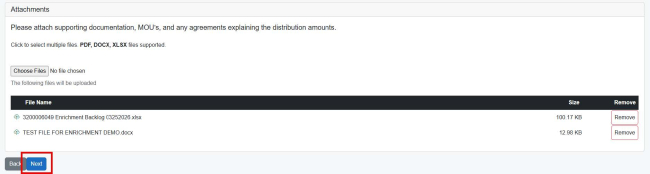
  1. Next, upload supporting documentation for the changes made to the distributions. This can be emails, MOUs, etc. Accepted files are PDFs, Word documents and Excel files. NOTE: If you upload a new budget document, it will be included as a file in the Attachments section.

    a. Click on Choose Files.

Attachments screen with the "Choose Files" button highlighted

          b. Navigate to the saved document(s). Double-click on the file or click the file once and then click Open to add the file to the Attachments list.

file explorer with a file name and "open" button highlighted

          c. The file will be added to the list of files at the bottom of the Attachments section.

Attachments screen with one of the file names highlighted

          d. After all files are uploaded, click Next

Attachments window with the "Next" button highlighted
  1. All required approvers will populate on the Review Approvals screen. This list includes the Principal Investigator (if someone other than the PI is submitting the Enrichment distributions), all Co-Investigators, the department chair or center director for each department receiving Enrichment, and the associate dean for research for each college receiving Enrichment.

          a. If someone is listed incorrectly, you can click on the red Report icon by their name. This will open an email so that you can send the correct information to the staff managing the workflow table.

          b. Please note: The workflow table is the same as the workflow table for IAF approvals. Any changes submitted via the Report button will also change the workflow for the IAF process.

Review Approvals screen with a list of reports, one "report" button is highlighted
  1. After confirming the approvers listed are accurate, click on the blue Next button. 
one report selected and the "Next" button is highlighted
  1. The Review & Submit screen shows the distributions entered and the required approvals. If everything is correct, click on the green Submit button.
a green "Submit" button highlighted under a list of reports

          a. If additional revisions are needed, click on the grant Back button.

a list of reports with a grey "Back" button highlighted


Approving Enrichment Distributions

Video demonstration for approving distribution submissions
 

  1. If Enrichment Distributions have been submitted for a grant and you are included in the approval workflow, you will see a number in the Awaiting My Approval section at the top of your Enrichment dashboard.

Enrichment Dashboard screen showing "1" Awaiting My Approval
  1. Click on the Awaiting My Approval box.
Enrichment Dashboard with the "Awaiting My Approval" section highlighted
  1. All submissions awaiting your approval will be listed in the first section.
Awaiting Your Review screen
  1. Click on the Review button to see the details for the submission.
The blue "Review" button highlighted on the Awaiting Your Review screen
  1. Information about the Enrichment awards and grant details are provided at the top of the screen. 
Enrichment Distribution Details screen showing approval and award info
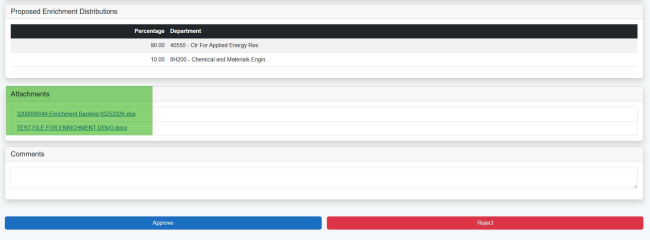
  1. The Proposed Enrichment Distributions are presented. 
Proposed Enrichment Distribution System screen
  1. Any attachments included with the submission are listed. You can click on each attachment to view the document. 
Proposed Enrichment Distributions screen with "Attachments" highlighted
  1. A comment box is provided, if you would like to add additional information.
The "Comments" box highlighted on the Proposed Enrichment Distributions screen
  1. Approve and Reject buttons are located at the bottom of the screen.
    1. If everything is as anticipated, click Approve.
    2. If you reject the submission, all workflow stops completely.
    3. If you reject the submission, you must enter a comment.
comments box with Approve and Reject bbuttons
  1. Once you’ve completed your approval, you can see the item in your My Reviews/Approvals section. 
Enrichment Dashboard with "My Reviews/Approvals" highlighted
  1. All completed reviews will be in the Previously Reviewed section. You can click on the submission to see the details. 
Awaiting Your Review screen with the Previously Reviewed section highlighted

Viewing Enrichment Distributions You Submitted

  1. To view the status of Enrichment distributions you have submitted, click on the View Progress section on your dashboard. 

Enrichment Dashboard with the "View Progress" button highlighted
  1. All submissions, and their status, will be listed. 
Proposed Enrichment Distributions screen
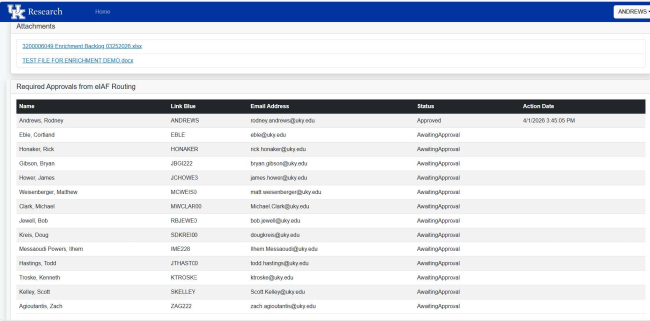
  1. You can click on a submission to see the details and view who has & has not approved the submission. 
screenshot showing Required Approvals from eIAF Routing